
en
Use Hyperliquid on mobile with KriptoK. Learn wallet setup, orders and position checks, then explore KriptoK League and its trading leaderboard.
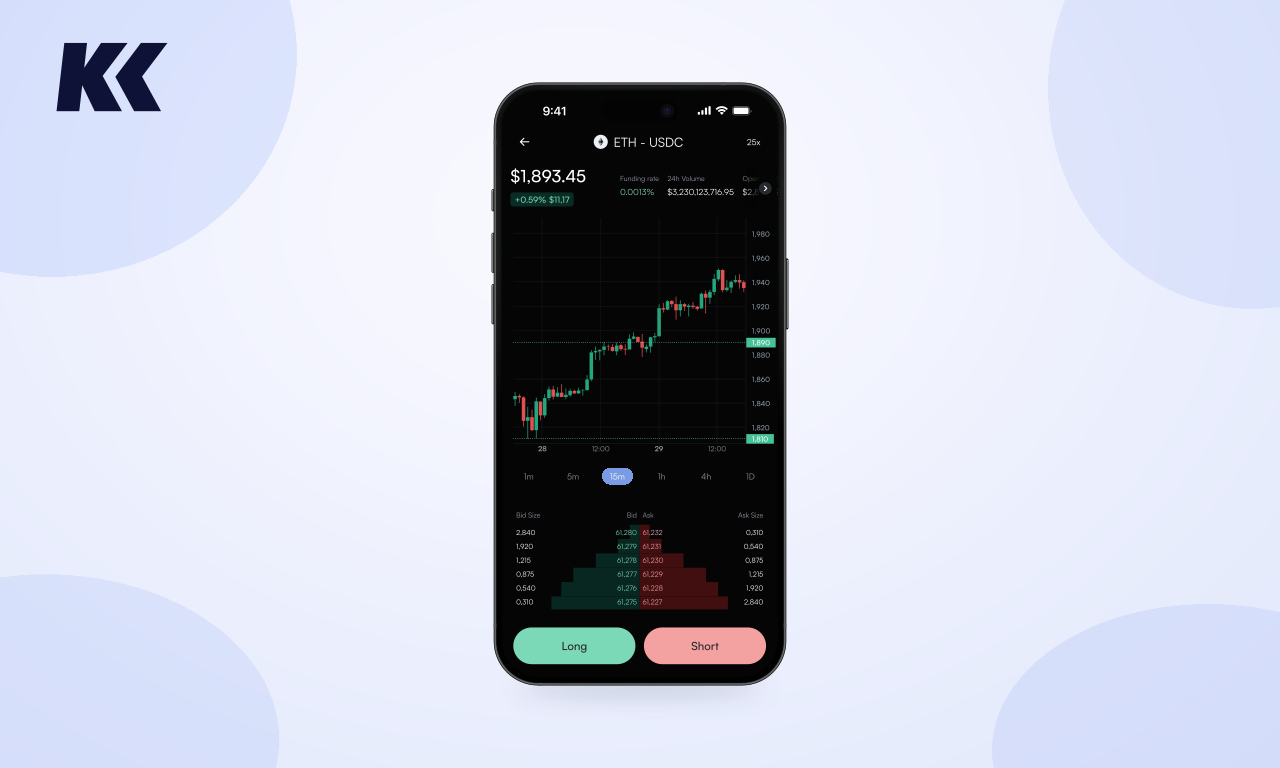
You can access Hyperliquid-powered perpetual markets from your phone through KriptoK. The app brings market and limit orders, position details and trade management into a self-custody wallet on iOS and Android.
KriptoK is a separate app, not Hyperliquid’s official mobile app. Hyperliquid provides the underlying trading infrastructure; KriptoK provides the interface you use. Hyperliquid’s own onboarding documentation also describes access through different apps and interfaces.
This guide covers wallet setup, funding, orders and position checks. It also explains how mobile trading connects with KriptoK League, where traders compete on percentage return and follow their performance on a leaderboard.
Install KriptoK from the App Store or Google Play. Create a wallet, secure the app with a PIN and complete the recovery-phrase backup before adding funds. The KriptoK wallet setup guide walks through this process.
Keep the recovery phrase private and offline. A device PIN protects access on that phone; it does not replace your wallet backup. Never send a recovery phrase to support or enter it into a website claiming to fix an account problem.
A wallet balance and available trading collateral serve different purposes. Before preparing a trade, check the balance available in the Perps area rather than assuming every asset in your wallet can back an order.
KriptoK supports trading-account funding from multiple networks. Use the funding options currently presented in the app and review the source network, asset, amount and any costs before confirming. Wallet network support does not mean every asset on that network is accepted for trading-account funding.
Wait for the available trading balance to update before placing an order. If a transfer is pending, inspect its status before sending another one. A deposit confirmation on the sending network is not a reason to repeat the transfer.
Open the Perps tab and select the market you want to examine. Check the full market name: a perpetual contract gives price exposure, not ownership of the underlying coin or share.
Then work through the order details:
The perpetuals terminology guide explains these fields. On a small screen, read the order value as well as the amount entered: collateral and total market exposure are different numbers.
Cross margin shares collateral between eligible cross-margin positions; isolated margin assigns collateral to a particular position. Availability and the scope of shared collateral depend on the market and account configuration. Hyperliquid’s margin documentation explains the distinction.
Market orders seek immediate execution against available liquidity. The final fill can differ from the price you saw while preparing the order.
Limit orders specify a price or better. Submitting one does not mean it has filled: it can remain open or fill partially. A limit order that crosses the order book can also execute immediately. See Hyperliquid’s order types.
KriptoK also supports take-profit and stop-loss tools. These use trigger conditions, so distinguish the trigger price from the eventual execution price. A stop is not a guarantee of a particular exit price. The protocol’s TP/SL documentation explains their behavior.
After confirming, check whether you have an open order, a filled position or a partial fill. KriptoK’s position details show current PnL and liquidation information. Recheck the position size and any exit orders after making changes.
There are three separate cost questions:
When reducing or closing a position, verify the resulting filled size and remaining orders. Closing the app does not close a trade, cancel orders or stop funding settlements.
It may still be waiting for execution. Check open orders and filled quantity before submitting another order. A submitted order and an open position are different states.
No. Controlling your keys does not remove liquidation, execution or protocol risk. Leverage can result in the loss of collateral, and perpetual markets may be unavailable in some jurisdictions.
KriptoK League adds a competition to the perps trading experience. Rankings are based on percentage return rather than trading volume or account size, and results across rounds contribute to the season standings.
The connection to this guide is practical: League qualifying orders must be placed through KriptoK and receive a fill. Understanding your available collateral, order status, fees and funding helps you follow both your positions and your League performance. Trading elsewhere through another Hyperliquid interface does not count as KriptoK League activity.
Start with the KriptoK League participation guide for activation, qualification and scoring. Then explore the current KriptoK League round and leaderboard. Check the official League rules before joining.
This guide explains product functionality and trading mechanics. It is not investment advice.